Loading ebook details...
Productivity / AI Knowledge Management
The Executive AI Second Brain in Obsidian
Organize project notes, check dashboards and plan local AI retrieval
4.9(41)
|Editorial review 4.4/5The problem
Project notes can become hard to retrieve and maintain. A useful vault needs consistent properties, checked queries, reviewed network connections and a tested recovery process.
Who it's for
Consultants and solo operators who want a structured note workflow and are willing to test plugins, model connections and backups before using confidential information.
The method
Plain Markdown Files -> PARA Structure -> Dataview Query Engine -> Local Vector Embeddings -> On-Device AI Synthesis
Inside this book
- 26chaptersOne method, explained step by step
- 30day planA small action for every day
How the method works
Plain Markdown Files -> PARA Structure -> Dataview Query Engine -> Local Vector Embeddings -> On-Device AI Synthesis: the path the book takes you through, step by step.
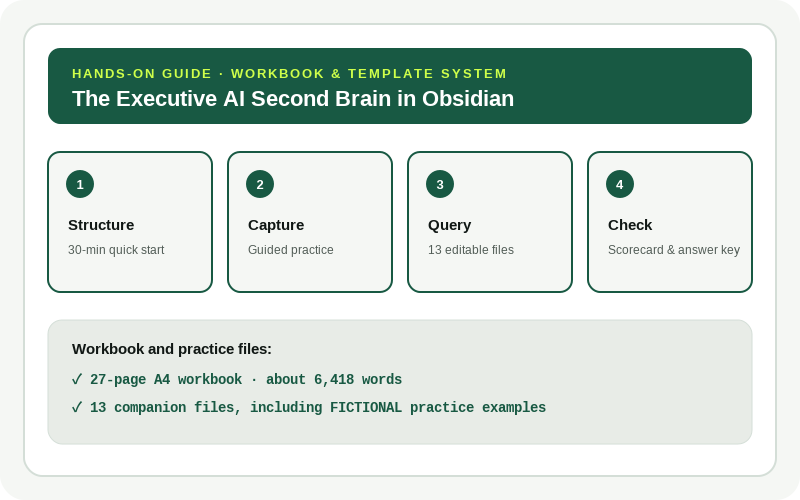
- StructureCreate folders and consistent note properties
- CaptureRecord supported decisions and real Markdown tasks
- QueryCompare each dashboard row with source notes
- CheckReview model connections, retrieval and backup restoration
- HandoverRecord scope, rights, acceptance results and open defects
What you'll be able to do
Prepare an Obsidian practice vault, compare dashboard results with source notes and test retrieval and backup behavior before adapting the workflow for client material.
Is this book right for you?
Make your project notes easier to find, review and hand over.
Useful for a prepared vault, source checks and backup questions. It is an organisational method, not guaranteed memory, privacy or retrieval accuracy.
Skip if a simple folder and free Obsidian help meet the need. Local files and written instructions do not by themselves establish encryption or safe plugin behaviour.
Prepare an Obsidian practice vault, compare dashboard results with source notes and test retrieval and backup behavior before adapting the workflow for client material.
Added buyer-guide/ contains an authored fictional source, complete reference decision, deliberate fault and editable review record. Existing tools, sources and licences remain. A file/score/template is not a verified real-world outcome.
Practice outcome
A fictional practice vault with four source notes and a dashboard
Practice outcome
Four DQL examples with project, task, date and type filters
Practice outcome
Meeting and content templates with fact and permission checks
Practice outcome
Local-model settings reference with network and retrieval checks
Practice outcome
A weekly review Canvas and recovery guidance
Practice outcome
A handover worksheet and twenty planned acceptance checks
What you can inspect
- Four fictional source notes support explicit dashboard expectations.
- The meeting properties and unchecked task rendered in Obsidian 1.12.7. Dataview and model behavior remain untested.
- An isolated local Git exercise verified selective staging, ignore behavior and restoration of an earlier committed text; no remote was configured.
What's inside
- 29-page revised workbook; 22 modules and 6,626 extracted words
- 13 companion files including a fictional practice vault and 20-case acceptance CSV
- DQL examples, meeting and content templates, weekly Canvas and handover worksheet
- Added buyer guide: specific paid-versus-free judgment, finished fictional comparison case, existing starter-file route and editable review record
Chapters
- 01Start here
- 02The 30-minute quick start
- 03Module 1: The Local-First Philosophy and Cloud Sovereignty
- 04Module 2: Plain Text Power: Why Markdown Outlasts Proprietary Apps
- 05Module 3: Installing Obsidian and Core Community Plugins
- 06Module 4: Implementing the PARA Method: Projects, Areas, Resources, Archives
- 07Module 5: Designing Frontmatter Metadata and YAML Properties
- 08Module 6: Automated Daily and Weekly Periodic Notes
- 09Module 7: The Client Meeting Intake Protocol
- 10Module 8: Case Study: How Marcus Managed a $12,000 Consulting Sprint (Modelled Scenario)
- 11Module 9: Dynamic Relational Views with Dataview Queries
- 12Module 10: Visual Thinking with Obsidian Canvas
- 13Module 11: Connecting Local AI: Ollama and Llama 3.2 Setup
- 14Module 12: Private Semantic Search with Smart Connections
- 15Module 13: Synthesizing Meeting Transcripts and Action Items
- 16Module 14: The Client Deliverable Engine: Notes to PDF Proposals
- 17Module 15: Evergreen Notes and Zettelkasten Knowledge Networks
- 18Module 16: Multi-Device Sync: Private Git vs Encrypted Sync
- 19Module 17: Securing Confidential Client Strategy and Financial Data
- 20Module 18: Monetizing Vault Architecture: The $2,500 Client Offer
- 21Module 19: Client Handover Workflows and Executive Training
- 22Module 20: Team Knowledge Repositories and Shared Vaults
- 23Module 21: Resolving Broken Links, Graph Clutter, and Tag Sprawl
- 24Module 22: The 15-Minute Sunday Reset Routine
- 25Your 30/60/90-day plan
- 26Practice vault and acceptance record
Read a free sample
No email needed. This is the book's real text, unedited.
Start here
Welcome to The Executive AI Second Brain in Obsidian. This practical workbook teaches you how to build a private, local-first knowledge operating system that organizes your client projects, synthesizes meeting notes, and surfaces past insights using on-device AI.
As a consultant, founder, or solopreneur, your intellectual property is your primary competitive edge. Every client call, strategy session, research paper, and market proposal represents hard-won knowledge.
Yet most professionals scatter their knowledge across five different cloud applications: Apple Notes, Google Docs, Notion, Slack, and messy desktop folders.
Storing sensitive client strategy in cloud SaaS apps creates three major risks:
- Vendor Lock-In and Recurring Fees: Cloud providers raise subscription prices every year and lock your notes inside proprietary database formats that are difficult to export.
- Cloud Outages and Disconnections: When your internet drops during a flight or client presentation, you lose access to your working notes.
- Data handling: Provider terms, plan settings and client agreements differ. Check permitted processing, training use, retention and subprocessors; neither cloud storage nor local storage alone proves compliance.
Local files reduce some export and availability risks, but do not eliminate device loss, plugin access, sync failure or confidentiality obligations. Obsidian is a local-first software application that reads and writes plain Markdown files directly on your computer's hard drive. Your notes exist as simple text files that you can open in any text editor fifty years from now.
When you enhance Obsidian with community plugins like Dataview, Smart Connections, and local language models via Ollama, you transform plain text files into a searchable note system. Local models can work offline after installation, but model downloads, remote providers, sync services and some plugin features need network access. Check each connection rather than assuming the entire setup stays local.
Plain Markdown Files -> PARA Folder System -> Dataview Query Engine -> Local Vector Embeddings -> On-Device AI Synthesis
Who this book is for
- Consultants, executive advisors, and freelance strategists who manage multiple client accounts and need instant retrieval of past recommendations.
- Solopreneurs and creators who want to build a compounding body of thought leadership notes without paying ongoing software subscriptions.
- Professionals handling confidential client data who require strict data privacy and local-first compliance.
Who this book is NOT for
- People looking for a casual shopping list app or quick reminder checklist.
- Users who demand proprietary cloud collaboration tools and dislike plain text formatting.
- Anyone unwilling to spend fifteen minutes a week maintaining clean note tags and folder hygiene.
What you need before starting
- A desktop or laptop computer running macOS, Windows, or Linux.
- The free Obsidian application installed from
obsidian.md. - A free Ollama installation (from
ollama.com) if you plan to run on-device local AI models. - The 13 companion files in your
templates/folder.
The examples use Obsidian with Dataview, Smart Connections and Ollama. Versions and plugin settings differ. Test each exercise in a sample vault before using client material; this edition does not claim a complete test across every version.
The 30-minute quick start
In this first half hour, you will scaffold an executive knowledge vault, deploy the PARA folder taxonomy, and create your first dynamic project dashboard.
Step 1: Create an empty vault and set up PARA folders (10 minutes)
- Open Obsidian and click Create new vault.
- Name your vault
Executive-Brainand select an empty folder on your primary hard drive (e.g., in your user Documents directory). - In the left file explorer sidebar, create these six folders (four PARA categories, plus Inbox and Templates):
00-Inbox10-Projects20-Areas30-Resources40-ArchivesTemplates
Step 2: Install and enable the Dataview community plugin (10 minutes)
- In the bottom left corner, click the Settings gear icon.
- Navigate to Community plugins and click Turn on community plugins.
- Click Browse, type
Dataviewin the search box, click Install, and then click Enable. - Leave JavaScript Queries disabled. These exercises use DQL code blocks and do not require JavaScript or inline queries.
Title: Method 1: Installing Dataview in Obsidian
App: Obsidian Desktop | Community Plugins
Menu: Settings > Community plugins > Browse
Target: Dataview (by Michael Brenan -> Install & Enable)
Outcome: Dataview is enabled and a simple table query returns a note from your test vault. Keep JavaScript queries disabled unless a later exercise specifically needs them.
Steps:
1. Open **Obsidian** on your desktop computer.
2. In the lower left corner, click the **Settings gear** icon.
3. In the settings sidebar, select **Community plugins**.
4. Click **Turn on community plugins** if restricted mode is enabled.
5. Click **Browse**, type `Dataview` into the search box, and select it from search results.
6. Click **Install**, wait for installation to finish, then click **Enable**.
7. Open a test note and try the basic Dataview query below. Leave JavaScript queries disabled for this exercise. Only enable them after reviewing the code and the plugin permissions.
Step 3: Create your first dynamic project dashboard (10 minutes)
- In the vault root, create a new note named
Executive-Dashboard.md. - Open companion file
templates/04-dataview-executive-dashboard-queries.md. - Copy the query under Section 1 (Active Client Projects) inside a fenced code block labelled dataview:
TABLE
  client AS "Client Name",
  deadline AS "Deadline",
  status AS "Project Status",
  budget AS "Retainer Value ($)"
FROM "10-Projects"
WHERE type = "project" AND status != "done"
SORT deadline ASC
- Paste this block into your
Executive-Dashboard.mdnote. - In your
10-Projectsfolder, create a test note namedPRJ-Acme-Growth.mdwith this frontmatter header:
---
type: project
client: Acme Corporation
deadline: 2026-12-15
status: active
budget: 6500
---
- Return to
Executive-Dashboard.md. Switch to Reading View (or pressCtrl + E/Cmd + E). - Watch the dynamic table automatically pull in your project name, client name, deadline, and retainer budget.
You have built a working, relational personal database in under thirty minutes without writing code.
Version 1.0-r20261109 · changelog
- 1.0 (9 November 2026): Initial release with 10 companion templates and 22 applied modules. 9 November 2026: revised practical walkthrough, editorial corrections and checked local deliverables.

